
Introduction
If your phone disappeared right now, what would you lose? Photos, messages, banking apps, maybe years of memories. Our phones are more than devices—they’re extensions of who we are. And in 2026, hackers know it better than ever. With mobile malware on the rise, cybercriminals are constantly finding new ways to sneak into your digital life—tracking your data, stealing logins, or cloning your SIM card.
But the good news? Protecting your phone from hackers doesn’t require being a tech genius. With just a few smart habits and settings, you can make your device practically bulletproof. In this article, we’ll walk through 10 simple yet powerful ways to protect your phone from hackers in 2026, along with real-world examples and practical tips you can apply right now.
So grab your phone (yes, the one you’re probably reading this on), and let’s lock it down together.
Why Phone Security Matters More Than Ever
Think about all the times you’ve used your phone today—checking messages, shopping online, logging into your bank account, or scrolling social media. Every tap and swipe can open a door to your personal data.
Here’s why phone security in 2026 is no longer optional:
• Mobile threats are evolving fast. Cyber attackers use AI-driven virus tools, phishing apps, and fake updates to target users.
• Phones store everything. From personal chats and photos to financial details, one hack can expose your entire life.
• Connected devices multiply risks. The rise of smart home gadgets and wearables means more entry points for hackers.
Protecting your phone isn’t about paranoia—it’s about preserving peace of mind. Now, let’s explore the best ways to stay safe.
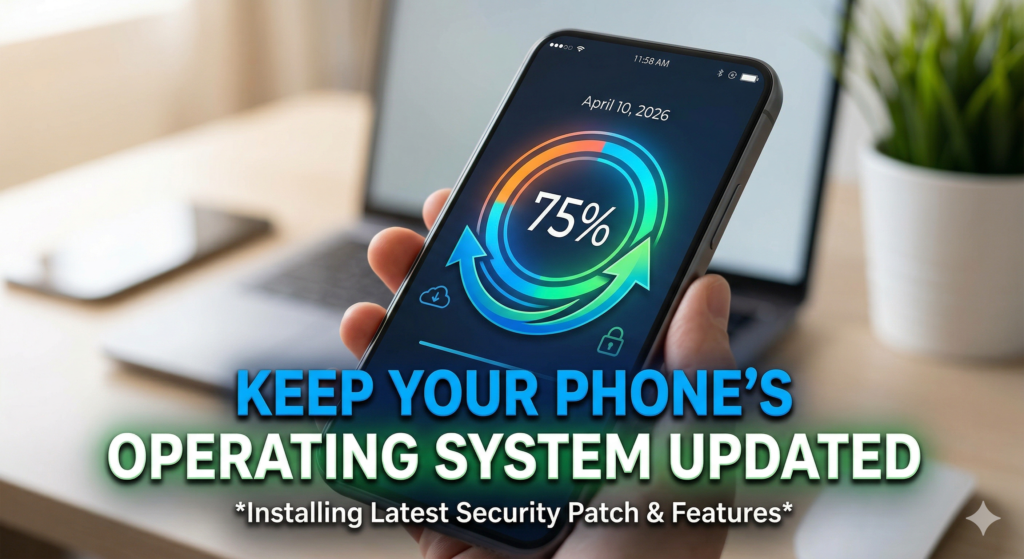
Keep Your Phone’s Operating System Updated
Outdated software is a hacker’s favorite playground. Whenever Apple, Google, or your phone manufacturer rolls out an update, it’s not just about new emojis—it’s about closing security holes that hackers exploit.
Example: In late 2025, a malware called “SilentSurfer” spread rapidly among Android users with outdated security patches. Those who updated their phones in time never got infected.
Tip: Turn on “Automatic Updates” in your settings so security patches install overnight without you lifting a finger.
Use Strong, Unique Passwords and PINs
If your phone unlock code is “1234” or “password,” it’s time for an update. Simple patterns make your device easy prey. Instead, use complex passwords or long PINs that mix numbers, letters, and symbols.
Pro Tip: Consider using a password manager app like 1Password or Bitwarden. These tools generate tough passwords and store them securely.
Enable Two-Factor Authentication (2FA)
Even if a hacker steals your password, two-factor authentication acts as a second lock. It sends a verification code to your trusted device—usually your phone or email—before granting access.
Example: If someone tries logging into your Google account from another city, you’ll get a prompt to verify the sign-in. Without your approval, they’re locked out.
Avoid Public Wi-Fi for Sensitive Tasks
Free coffee shop Wi-Fi might sound convenient, but it’s a hacker’s paradise. Anyone on the same network can intercept your data, including passwords or emails.
Alternative: Use your mobile data or invest in a reliable VPN app when you need to connect securely on public networks.
Bonus Tip: If Wi-Fi is the only option, avoid logging into banking or shopping accounts.
Use a VPN for an Extra Layer of Protection
A Virtual Private Network (VPN) hides your IP address and encrypts your internet activity. It’s like driving in a tinted car—no one can see where you’re going online.
Choose a trusted VPN provider (look for ones that don’t store your data). Not all VPNs are created equal—free ones often track you to sell ads.
Download Apps Only from Trusted Sources
Malicious apps often pretend to be harmless games or utilities but secretly spy on your activity. Always download from Google Play, App Store, or your phone manufacturer’s official store.
Example: In early 2026, a fake “battery saver” app on a third-party website infected thousands of devices with spyware.
Tip: Before installing anything, read reviews and check developer details.
Check App Permissions Regularly
When was the last time you reviewed which apps can access your camera or location? Many apps ask for permissions they don’t need, which can compromise your privacy.
Go into “Settings → Privacy → Permissions” and revoke unnecessary access. For example, your calculator doesn’t need to know your GPS location.
Don’t Click Suspicious Links or Attachments
Phishing attacks are old but still effective. Hackers send realistic-looking messages or emails pretending to be from your bank, shipping company, or even friends.
Golden Rule: Never click a link you didn’t expect, and don’t open attachments from unknown senders.
Also read: Why Your Phone is Slow and 10 Easy Ways to Fix It
Secure Your Lock Screen
Most people underestimate how much information shows on their lock screen—notifications can reveal OTPs, messages, and even personal info.
Go to: Settings → Notifications → Hide sensitive content on lock screen.
Better yet, use biometric locking (fingerprint or face ID). It’s fast and far safer than a swipe pattern.
Install a Reliable Mobile Security App
Modern antivirus apps do more than just scan for malware—they monitor privacy leaks, prevent phishing, and even track your device if it’s lost.
Recommended examples (2026 versions): Norton Mobile Security, Bitdefender, and Avast One.
Tip: Use only one security app at a time. Multiple antivirus tools can conflict and slow your phone down.
Avoid “Rooting” or “Jailbreaking”
Tempting as it sounds to unlock extra features, rooting or jailbreaking removes built-in security barriers. It makes your phone more flexible—but also more vulnerable.
Hackers love such devices because they’re easier to infect with deep-level malware.
Safer option: Stick to official customizations or themes supported by your manufacturer.
Keep Bluetooth Turned Off When Not Needed
Bluetooth can be exploited for short-range attacks, especially in crowded public spaces. Hackers use special tools to connect to nearby devices and transfer data silently.
Example: The “BlueBorne” attack from previous years infected millions without users even pairing devices.
Tip: Disable Bluetooth when not using it—or use “invisible” mode so it’s not discoverable.
Turn Off Auto-Connect to Open Networks
Many phones automatically join remembered Wi-Fi networks, which can include malicious duplicates. A hacker could name their hotspot “CoffeeShop_WiFi” and steal data easily.
Fix: Head to Wi-Fi settings and disable “Auto-Connect” for open networks.
Back Up Your Data Regularly
If something goes wrong—whether it’s hacking, hardware failure, or loss—you’ll thank yourself for having backups.
Use Google Drive, iCloud, or physical backups to an encrypted hard drive. Schedule weekly automated backups for maximum safety.
Protect Your SIM Card with a PIN
Hackers can perform SIM-swapping attacks, tricking carriers into transferring your number to another SIM. This lets them intercept texts and 2FA codes.
You can stop this by setting a SIM PIN. Find this in “Settings → Security → SIM Card Lock.”
Keep Location Sharing Limited
Apps that constantly track your GPS can expose your daily routines—and if hacked, even reveal where you live or work.
Solution: Allow “location access only while using the app.” Disable background tracking unless absolutely necessary.
Monitor Battery and Data Usage
Strange spikes in battery drain or data usage can indicate something’s wrong—like an app secretly sending data in the background.
Regularly check your “Battery Usage” and “Data Usage” reports. Suspicious activity often shows up before a virus does.
Use Encrypted Messaging Apps
Messaging apps like Signal or WhatsApp use end-to-end encryption, meaning no one (not even the company) can read your messages.
Avoid shady alternatives that claim to be “private” without showing how their encryption works.
Stay Vigilant About Physical Access
Cybersecurity isn’t always digital. If someone gets your phone physically, they can do plenty of damage.
Keep screen locks strong, avoid leaving phones unattended in public, and use biometric authentication when available.
Review Your Cloud Security Settings
Cloud backups are convenient, but they can also be entry points if not secured properly. Enable 2FA and monitor where your cloud account is logged in from.
If you stop using a service, delete your data immediately instead of leaving it floating online.
Encrypt Your Phone Storage
Most modern devices offer full-disk encryption by default. This ensures that even if your phone is stolen, your files can’t be opened without the passcode.
Check it: Settings → Security → Encryption. Turn it on if it isn’t already.
Turn Off Unnecessary Voice Assistants
While smart assistants like Siri or Google Assistant are handy, they sometimes listen more than they should. Certain hacks can activate them remotely.
Tip: Disable “Hey Siri” or “Hey Google” for a tighter shield when privacy matters.
Securely Erase Old Devices Before Selling
Before trading or selling your phone, ensure you wipe it clean. Use the “Factory Reset” option and select any “Erase all data” toggle.
Many people skip encryption wipe, letting skilled hackers recover old files later. Don’t let that be you.
Watch Out for Fake Chargers and Accessories
Cheap charging cables from unreliable brands sometimes contain hidden chips that can inject malware or steal data via USB.
Rule of thumb: Buy only from reputable stores or official brands.
Set Up “Find My Device” Tracking
Both iOS and Android offer “Find My Phone/Device” tools to locate, lock, or erase your device remotely.
This not only helps when lost but also when fighting theft. Always keep this setting turned on and test it occasionally.
Use a Secure Lockdown or Emergency Mode
Some Android and iOS versions include Lockdown Mode, disabling all biometric data and notifications temporarily. It’s perfect when you’re traveling or at risk of being coerced.
Just knowing how to activate it gives peace of mind.
Keep an Eye on Device Login History
Google, Apple, and most major services show all active sessions tied to your account. If you ever notice unfamiliar logins, revoke them immediately.
Make it a monthly habit to check “Your Devices” in account settings.
Don’t Use the Same Password Everywhere
Using one password across multiple websites is like using a single key for your house, car, and office. Once stolen, everything’s at risk.
Rotate passwords every few months and use unique ones for every critical account—especially banking, cloud, and email.
Be Careful with QR Codes
QR codes are convenient, but hackers can embed harmful links leading to phishing sites or downloads.
Defense: Use your phone’s built-in camera (not third-party scanners) and inspect URLs before tapping “Open.”
Stay Informed About New Threats
Cybersecurity is always evolving. Following tech blogs or security experts helps you keep ahead of new scams or attacks.
When you know what’s out there, you’re already safer than 90% of users.
Limit Screen Mirroring and Casting Permissions
Allowing your phone to connect with TVs or PCs through mirroring apps can unknowingly share screen data. Always disconnect after use and turn off wireless casting features.
Disable USB Debugging Mode
Developers often use USB debugging for testing, but leaving it enabled makes it easier for hackers to gain control if plugged into a malicious computer.
Find it under Developer Options and toggle it off unless needed.
Regularly Clear Cache and Temporary Files
Hackers can sometimes extract traces of old data from cached files. Clearing your browser and app cache keeps everything streamlined and private.
Plus, it helps your phone run faster.
Use Privacy-Focused Browsers
Try browsers like Brave or Firefox Focus, designed to block trackers and pop-up scripts that might contain malware.
They also limit cookies and give you control over what data gets stored.
Don’t Overshare on Social Media
The more personal info you reveal online—like birthdays or travel plans—the easier it is for hackers to tailor attacks or guess passwords.
A smart trick: delay posting details about your trips until after returning home.
Test Your Security Settings Periodically
Treat your phone like a car—it needs regular checkups. Set reminders every 2–3 months to review passwords, app permissions, and backup settings.
This habit makes sure your defenses stay updated as technology evolves.
Separate Work and Personal Devices
If possible, keep separate devices for work and personal use, especially when handling sensitive corporate data. It minimizes risk exposure in case one account is compromised.
Use Secure Payment Methods
Avoid typing card details directly into random websites. Use digital wallets like Google Pay or Apple Pay—they encrypt transactions and don’t share your actual card info.
Protect Your Email Account — It’s the Gateway
Your email is the master key to everything—from password recovery to cloud logins. Strengthen it with strong credentials, 2FA, and regular monitoring.
Trust Your Instincts
If something feels off—like a text from your “bank” asking you to verify details—pause. Gut feeling saves more accounts than antivirus apps ever could.
FAQ: Common Questions About Phone Hacking
Q1. How do I know if my phone is hacked?
Look for signs like overheating, bizarre pop-ups, fast battery drain, or unusual app activity.
Q2. Can iPhones get hacked too?
Yes. While Apple’s system is more secure, no phone is immune. Jailbreaking or installing unknown profiles increases risk.
Q3. Should I reset my phone if I suspect hacking?
Absolutely. Back up your data first, then do a factory reset and reinstall apps only from trusted stores.
Q4. Are antivirus apps really necessary?
Yes. They offer real-time scanning, anti-phishing, and theft protection features that prevent most mobile attacks.
Q5. Can hackers see through my camera?
Unfortunately, yes—if a malicious app has camera permissions. Review and revoke permissions regularly.
Q6. Does a VPN make me completely safe?
No single tool is foolproof, but VPNs significantly reduce data exposure on unsecured networks.
Q7. What’s the best security tip overall?
Stay alert and informed. Awareness will protect you far more than any app.
Conclusion: Your Phone, Your Responsibility
Protecting your phone in 2026 is about adopting new habits, not just downloading tools. Every setting you tweak and every update you install builds another layer of protection between you and a hacker.
Think of your smartphone like your wallet—it holds your identity, your money, and your personal world. Would you toss that anywhere without locking it? Probably not.
Start applying these tips today—one small step at a time—and you’ll soon navigate the digital world confidently, free from the constant fear of being hacked.
Stay safe, stay smart, and remember: security begins with awareness.
Also read:
• 10 Free Websites That Can Replace Expensive Software in 2026
• 20 Hidden Android Tricks You Didn’t Know About (2026 Edition)
Leave a Reply